Annotate and comment on a photo
Leave precise notes placed directly on the image.
Instead of vaguely describing "the third photo, top right," etouch lets you comment directly on the image. Your notes are then crystal clear for the studio and the retoucher.
Open a photo to annotate it
Click a photo to open it full size. Next to the image, a comments panel appears.
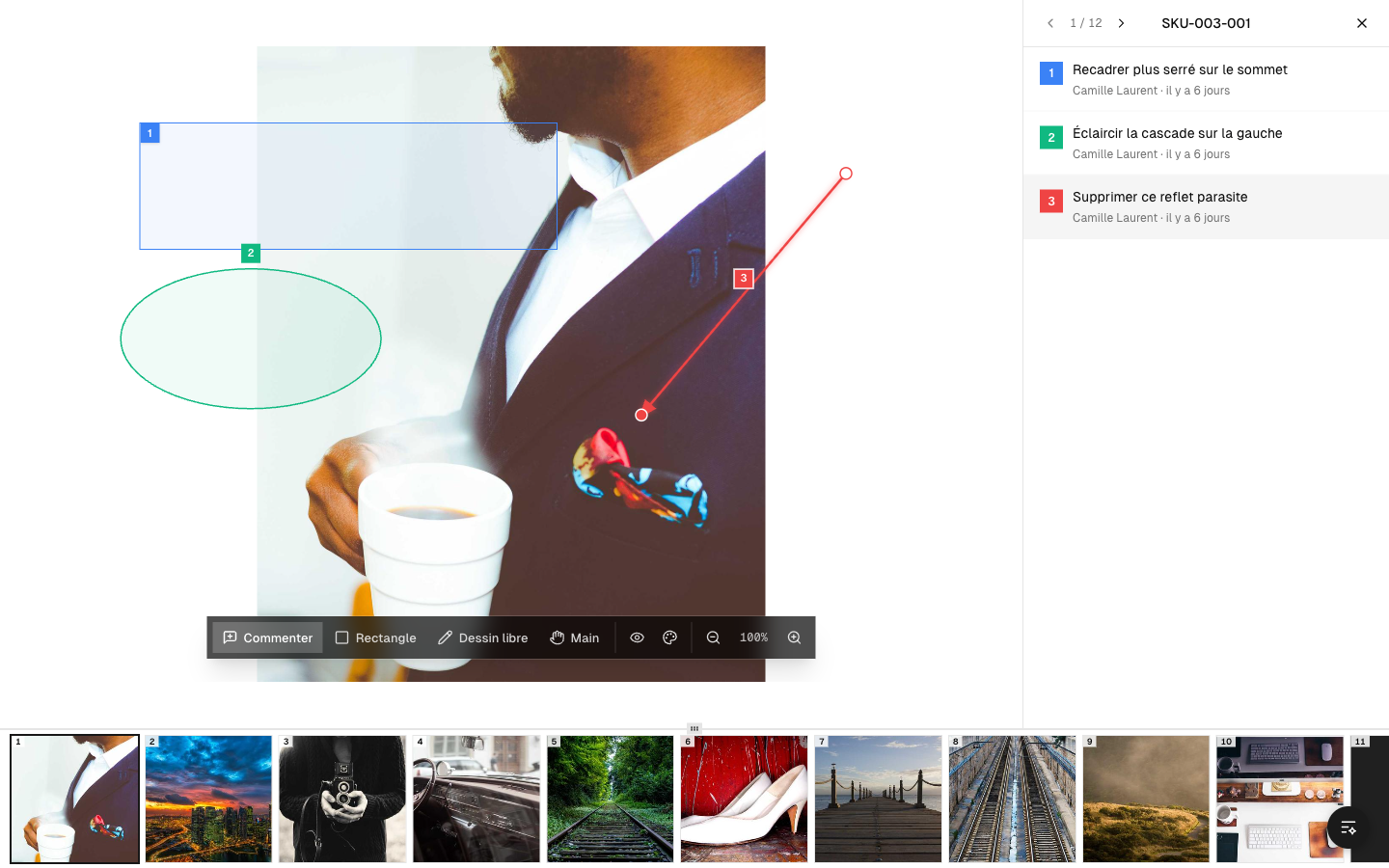 The annotation area of a photo
The annotation tools
A small toolbar offers several ways to point out a detail:
- Point (pin) — click a spot on the image to drop a numbered marker. Ideal for "remove this glare, right here."
- Rectangle — frame an area (a flaw on a garment, for example).
- Freehand drawing — draw by hand to circle an irregular shape.
- Pan — to move around the image without annotating.
Each marker is numbered and color-coded, and stays pinned to the exact spot on the image.
Write a comment
- Place a marker (or leave a general comment, without a marker).
- Type your message in the panel.
- Submit: your comment appears in the list, with your name.
The exchanges read like a conversation: the studio or the retoucher can reply below each comment.
Show or hide annotations
A button lets you temporarily hide all the markers to see the "bare" photo again, then bring them back.
Best practices
- One marker = one specific request. Several requests? Place several markers.
- Be concrete. E.g.: "brighten the background," "remove the label," "keep the skin texture."
- Nothing is lost: the retoucher will find your comments when it's time to work.