Each step in detail
Exactly what happens at each of the 7 steps, and how you move to the next one.
In short: each step unlocks the next one; if the client rejects a retouch, the project returns to "In retouch" for a new retouch round.
Here, in order, is what happens at each step of a project. At the top of a project page, a progress bar constantly reminds you of the current step and the expected action. For the overview, see The 7 steps of a project.
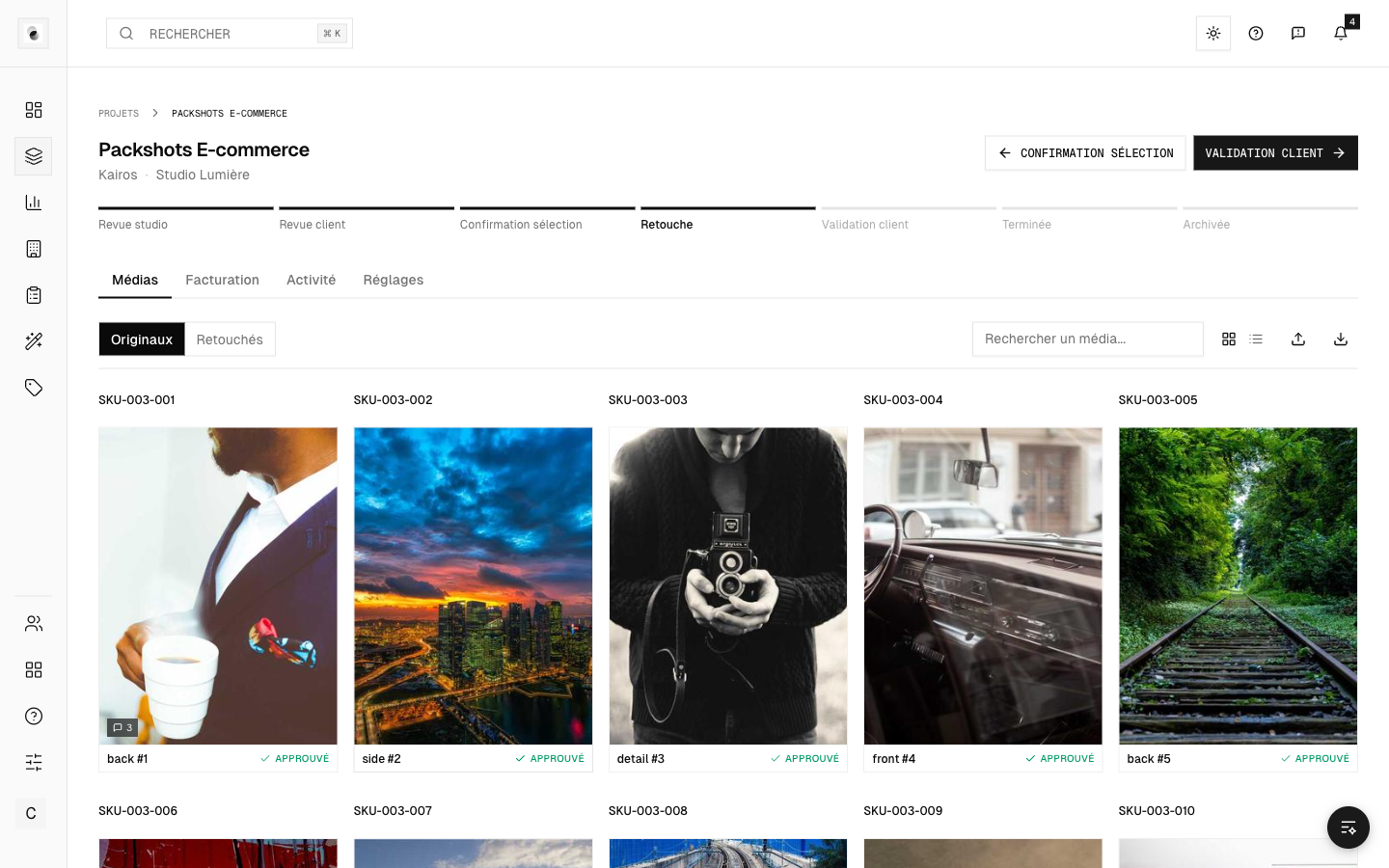 A project's progress bar
1. Studio preparation
The studio creates the project and imports the photos. Nothing is visible yet on the client's side. The studio gets everything ready: media, and possibly the guidelines and prices.
To move forward: at least one photo must be imported. The studio then sends the project to Client review.
2. Client review
The client discovers the gallery and selects the photos to retouch. This is a key moment: only the checked photos will go to retouching.
To move forward: the client confirms their selection, which sends the project to Selection confirmation.
3. Selection confirmation
The studio checks the selection, then assigns a retoucher and the appropriate retouching guidelines.
To move forward: once the retoucher and guidelines are in place, the studio launches the In retouch phase.
4. In retouch
The retoucher works on the selected photos and uploads their retouched versions, following the guidelines.
To move forward: when the retouches are ready, the project moves to Client validation.
5. Client validation
The client compares each retouch to the original and approves or rejects photo by photo.
- If everything is approved, the project moves to Done.
- If at least one photo is rejected, the project automatically returns to "In retouch" for another round of corrections. This is called a retouch round.
A rejected photo has to be handled before the project can be closed: you can't finish a project while a rejection is still pending.
6. Done
All retouches are validated. The deliverables can be downloaded and the project can be invoiced.
7. Archived
The project is closed and put away. It can still be viewed but no longer changes. This is the final state.
Going back
A studio or an administrator can, if necessary, return to a previous step or jump to a step from the progress bar. These actions are controlled: for example, you can't move back to "In retouch" if there's no retouch to correct. A confirmation window appears at every step change.