Track a project's progress
Move a project from one stage to the next, step back or skip a stage.
In brief: from the progress bar, move the project to the next stage, step back or skip a stage — within the limits set by the safeguards.
As a studio or administrator, you steer the project's progress using the progress bar at the top of its page.
The progress bar
It shows the project's 7 stages and highlights the current one (see The 7 stages of a project). Each stage is a named milestone you can act on.
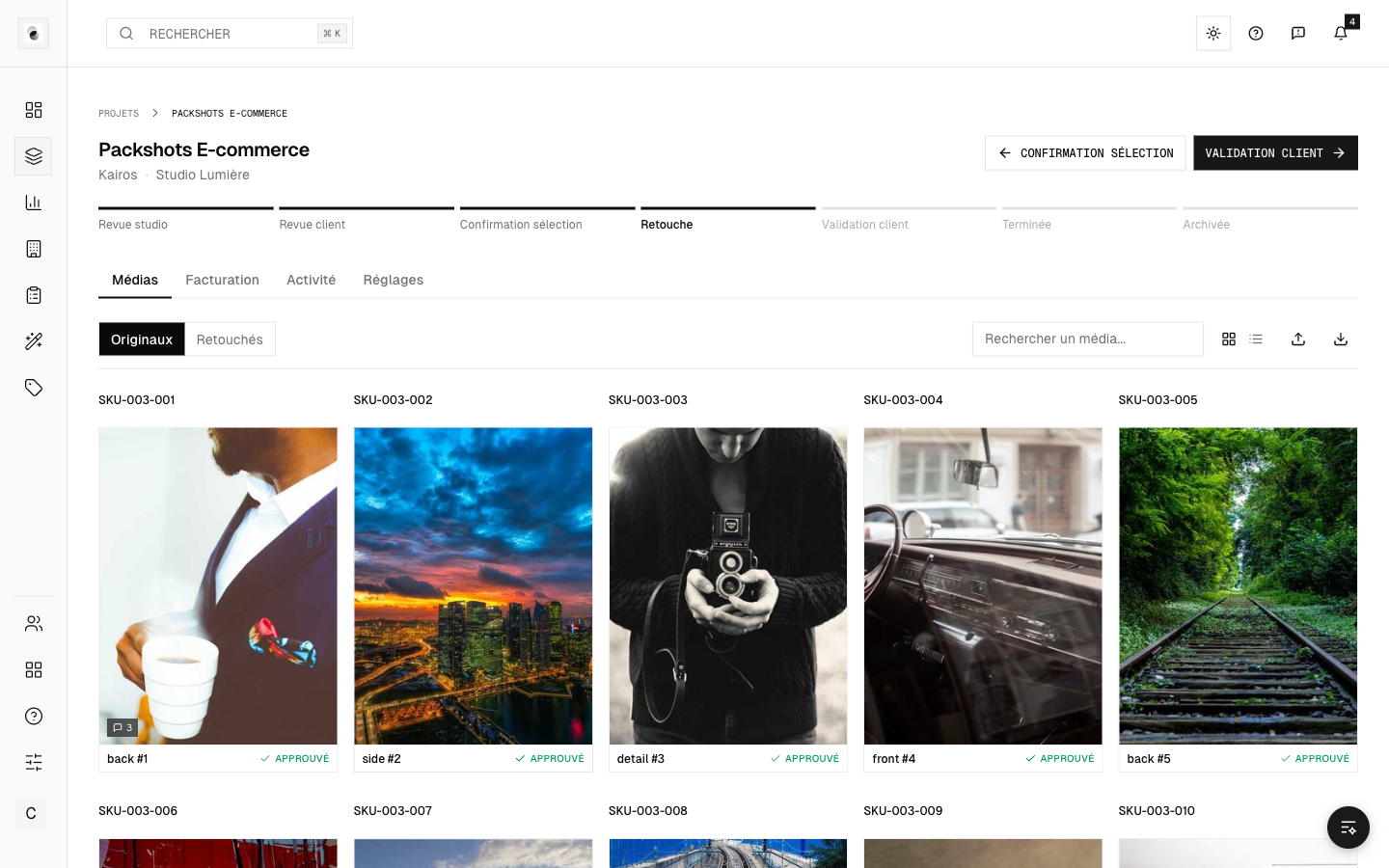 A project's progress bar
Move to the next stage
When the conditions are met (for example "at least one photo imported"), a button invites you to move to the next stage. A confirmation window recaps what's about to change.
Step back
Need to backtrack? You can return to a previous stage — handy, for instance, if the client wants to add photos to their selection after confirming it.
Jump to a stage
In some cases, you can jump straight to a stage: for example, closing a project without going through retouching if it doesn't need it.
The safeguards
These moves are framed by rules to avoid inconsistencies:
- you can't go back to "in retouch" if there's no retouching to correct;
- a rejected photo must be dealt with before you can close the project.
These rules protect you from slip-ups. If a button is unavailable, a message tells you the missing condition.