Upload and import media
Add photos to a project: from your computer, Dropbox or an FTP server.
A project needs photos. etouch offers several ways to bring them in, from the simplest (drag and drop) to automated imports.
Upload from your computer
On the Media tab, click Upload and select your files. The images go straight to storage, then etouch generates the previews and thumbnails.
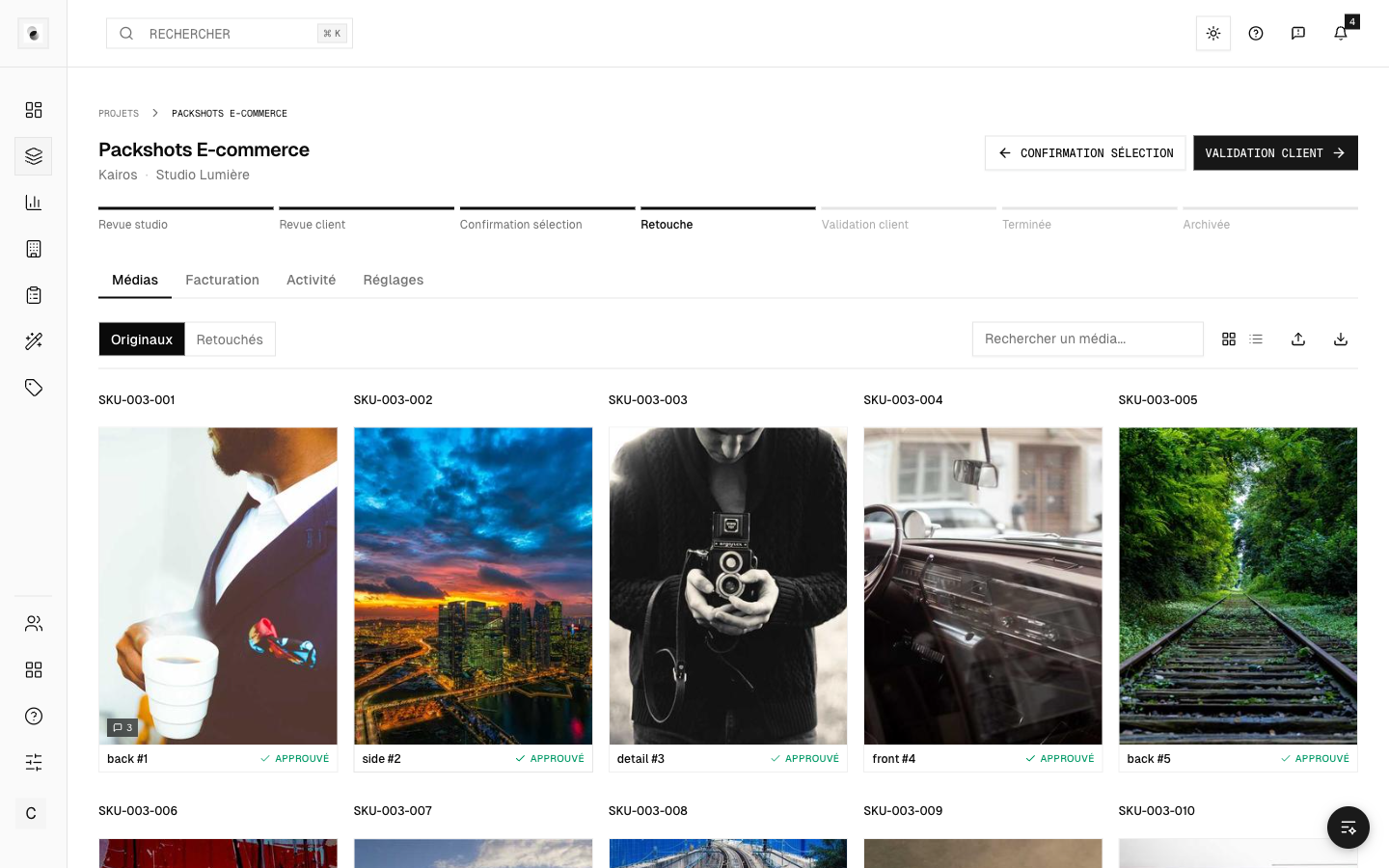 Uploading media
Each photo goes through three states: Imported → Processing → Ready. Once it's "Ready", it becomes visible and can be viewed.
Import from Dropbox
If the Dropbox integration is installed, the Dropbox tab of the Upload window lets you pick a folder and import it. See Integrations (Apps).
- The folder is imported with its sub-folders, like a folder dropped from your computer.
- Photos get exactly the same treatment as an upload: SKU / view / variation naming, G/P marker (Ghost / Piqué) removed from the displayed name, tools images (
_toolssuffix or the Tool images box ticked), extra formats. - Files already in the project are skipped: importing a folder again only adds what is new.
- Progress is shown during the import. At the end, etouch shows how many files were imported, skipped and failed, with the reason for every file not imported (already in the project, unsupported format, file too large…).
- You can close the window: the import keeps going, and resumes by itself if an etouch update interrupts it.
Import from a link
The Link tab of the Upload window imports the files behind one or more pasted links (one per line):
- Dropbox shared link to a file (
dropbox.com/scl/fi/…,dropbox.com/s/…): imported without a connected Dropbox account, as long as it is shared with "anyone with the link". - Dropbox shared link to a folder (
dropbox.com/scl/fo/…,dropbox.com/sh/…): every file of the folder and its sub-folders is imported. A shared folder goes through the studio's Dropbox connection: install Dropbox in Apps first. - Direct link to an image or a video (
https://…/photo.jpg): etouch downloads the file.
Files get the same treatment as an upload (naming, G/P marker, tools images, files already in the project skipped). An invalid, expired or unshared link, or one pointing to an internal address, is reported with its reason; the other links are imported normally.
Import from an FTP server
Studios set up with an FTP server can pull files from it automatically. FTP sync is configured on the project's Settings tab (see Integrations (Apps)).
Videos
Videos are supported: after importing, etouch prepares them for smooth playback in the browser. As with photos, give them a moment to process.
Good to know
- Don't close the tab during a large upload while the progress bar is still running.
- Product references / SKUs can be recognized from the file names, which sorts the gallery automatically.
- Large files are handled: there's no need to compress them before sending.