Finding your way around the app
The left-hand menu, the top bar, search and notifications.
etouch's interface is the same everywhere: a vertical menu on the left and a bar across the top. Once you have these two landmarks in mind, you'll navigate effortlessly.
The left-hand menu
This is your main navigation. It expands on hover to show the name of each section, and collapses into icons to leave room for the content.
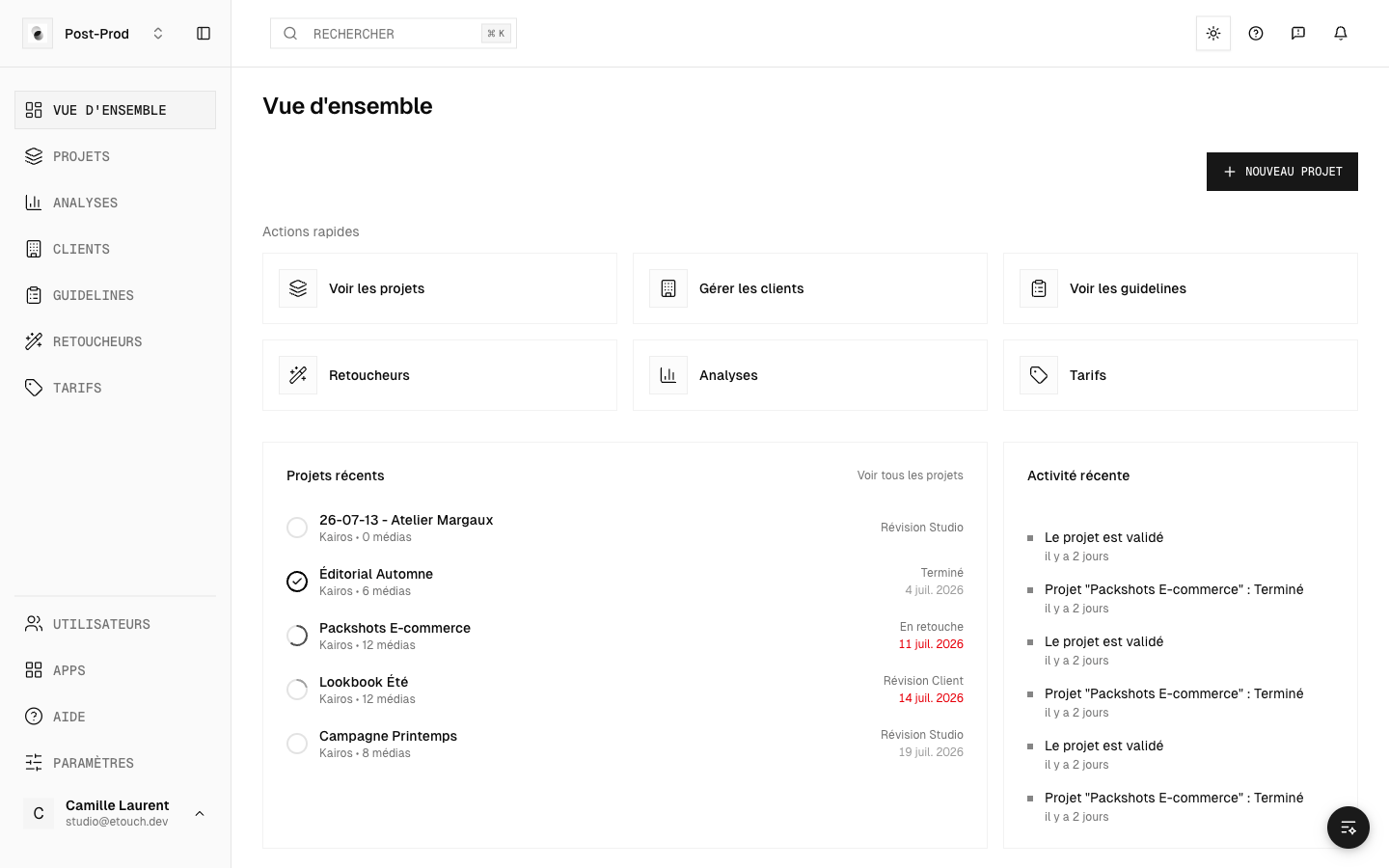 The expanded side menu
The sections depend on your role. Typically you'll find Overview, Projects, and — depending on your permissions — Clients, Guidelines, Prices, and so on. At the very bottom are the shared sections: Help, Settings, and your account.
Tip: the ⌘ B keyboard shortcut (or Ctrl B) locks or unlocks the menu open.
The top bar
From left to right, it contains:
- the global search, to find a project, a client or a photo;
- the light or dark theme;
- the help button ("?" icon) that opens this documentation;
- the Report a problem button to contact the team;
- the notification bell.
 The top bar
Global search
Click in the search bar (or use the shortcut shown) to open it. Type a few letters: the results appear instantly and you reach them with a single click.
Notifications
The bell in the top right gathers everything that needs your attention: a selection to make, a retouch to validate, a new comment… A dot shows the number of unread notifications.
You can also choose which notifications to receive by email — see Notifications.
On mobile
On a small screen, the left-hand menu hides behind a menu button (top left). Everything else works the same way.