Signing in and accepting an invitation
Set up your access, sign in, and recover a forgotten password.
You use etouch from your browser, on both desktop and mobile. No installation is needed.
You received an invitation
Most users join etouch through an email invitation sent by the studio.
- Open the invitation email and click the Accept invitation button.
- Choose a password (or sign in if you already have an account).
- You land straight in your workspace, attached to the right organization.
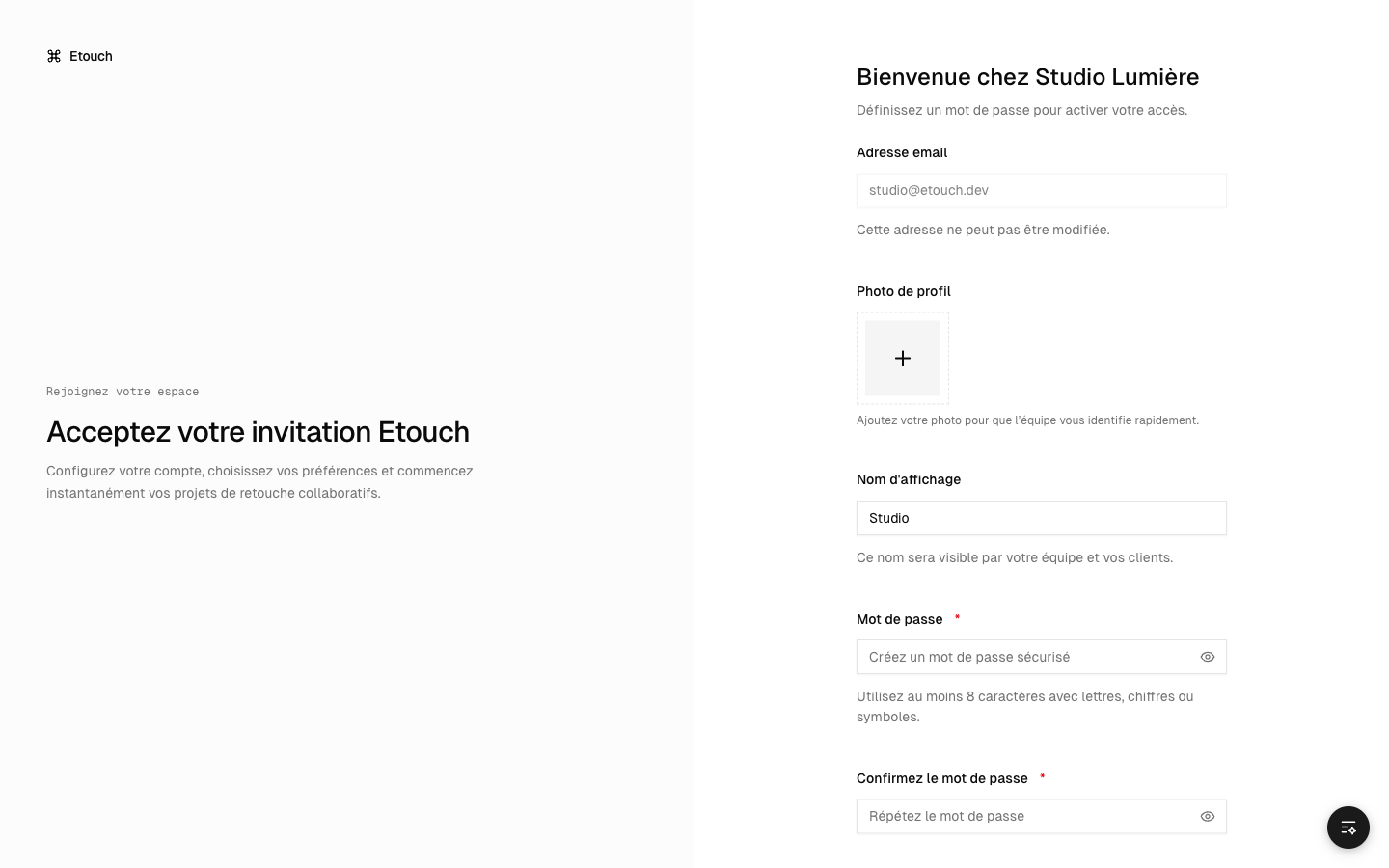 Invitation acceptance screen
The invitation link is personal and has an expiry date. If it has expired, ask the studio to send you a new one.
Signing in
Go to the sign-in page, enter your email and your password, then click Sign in.
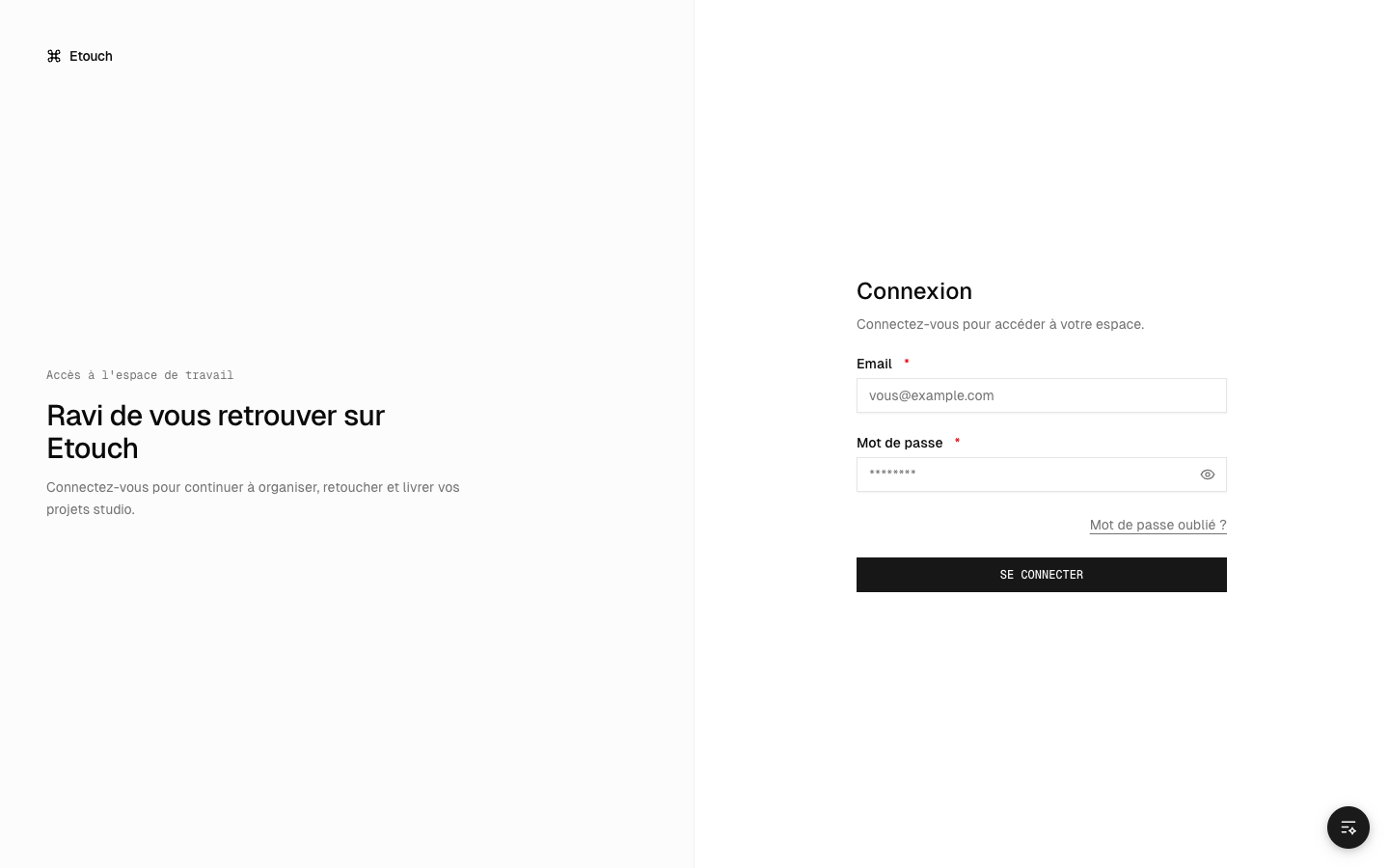 Sign-in page
Forgotten password
- On the sign-in page, click Forgot password.
- Enter your email: you'll receive a reset link.
- Open the link and choose a new password.
Changing the language
The interface is available in French, English and Spanish. The language adapts automatically to your browser; you can also change it in your Settings (see Your account settings).
Trouble signing in?
- Check that you're using the same email address as the one on the invitation.
- Look in your spam folder if you didn't receive the expected email.
- As a last resort, use the Report a problem button (icon in the top right) or see Contacting support.